
How to Use Brushes in Photoshop
By Leila · Creative Director · Game Designer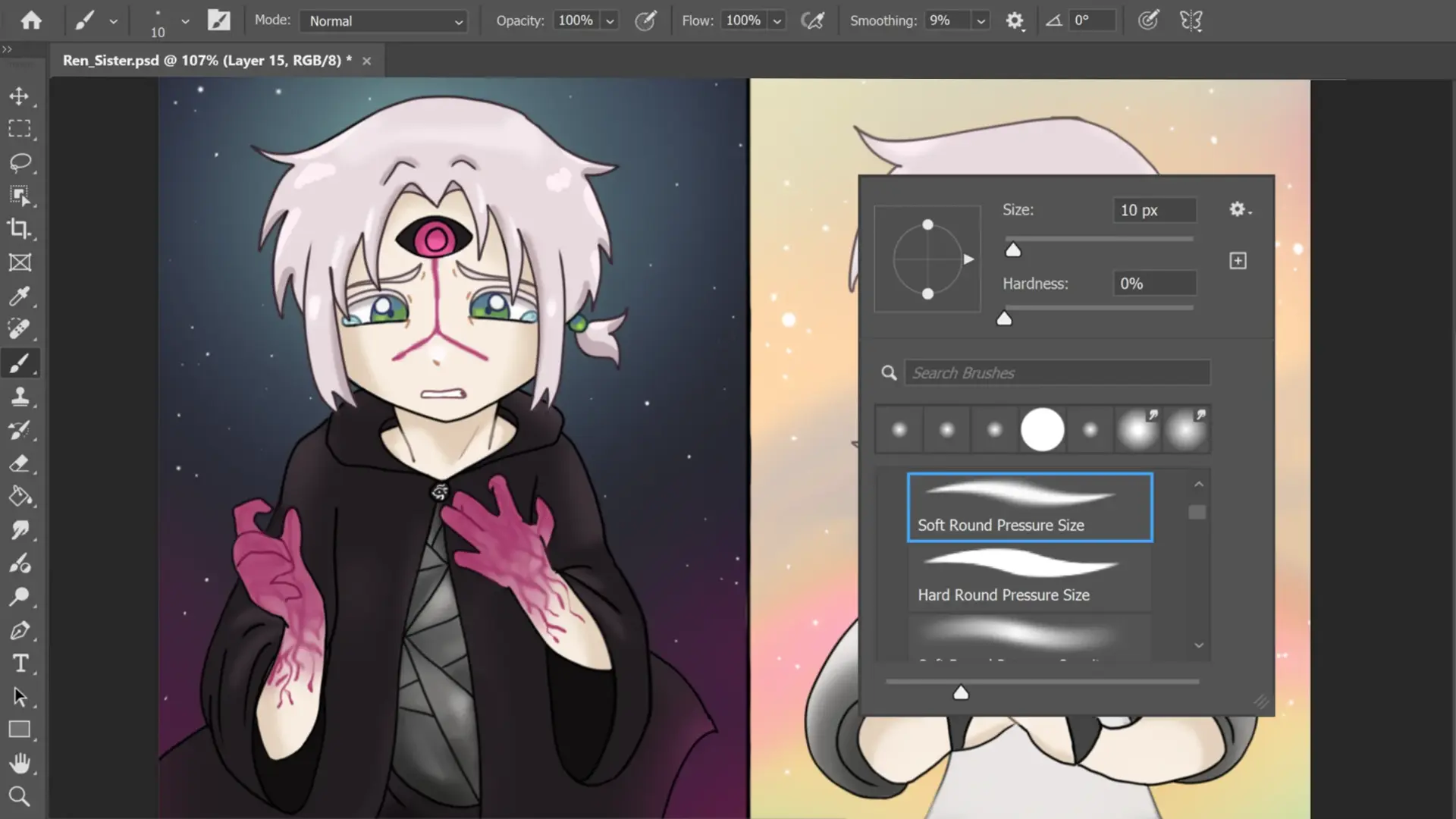
Brushes are the soul of digital painting in Photoshop — the same artist with a different brush feels like a different artist. This is the short setup tour: where the Brush Panel lives, why Brush Settings matter, and how to install custom .abr brush sets you’ve downloaded.
For the colour side of the same workflow, see How to Color in Corel Painter or the iPad alternative How to Color in Procreate.
Where can I find a Brush Panel?
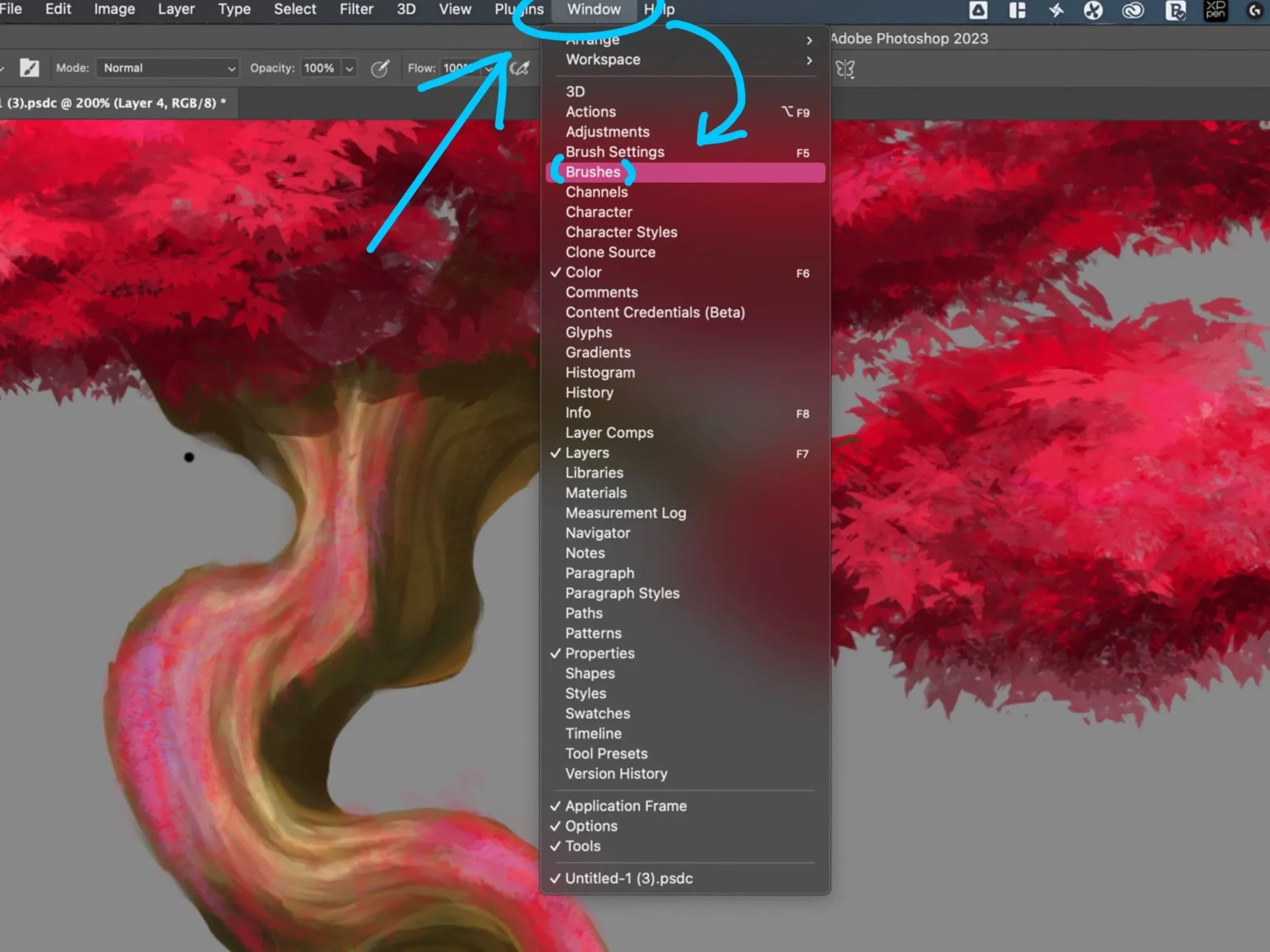
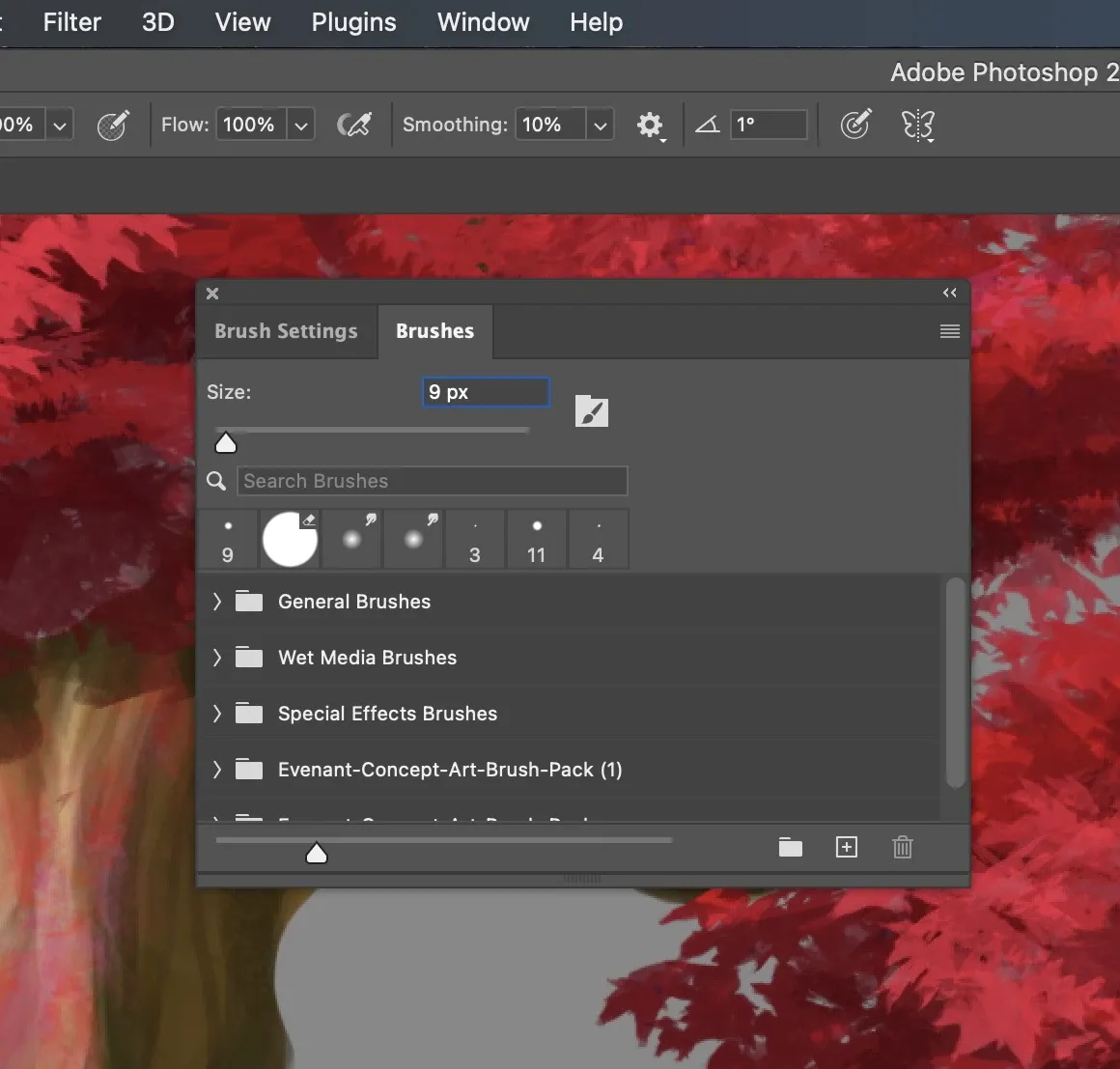
To open the Brush Panel, navigate to Window → Brushes. For more advanced customization, press F5 to access the comprehensive Brush Settings Panel.
Why do I need Brush Settings?
The Brush Settings Panel lets you adjust texture, scattering, and noise. Other parameters you can customize:
- Size
- Angle
- Hardness
- Opacity
- Flow
- Smoothing
- Scattering
- Texture
- Noise
- Shape
- Dynamics
- Transfer
How can I download new brushes?
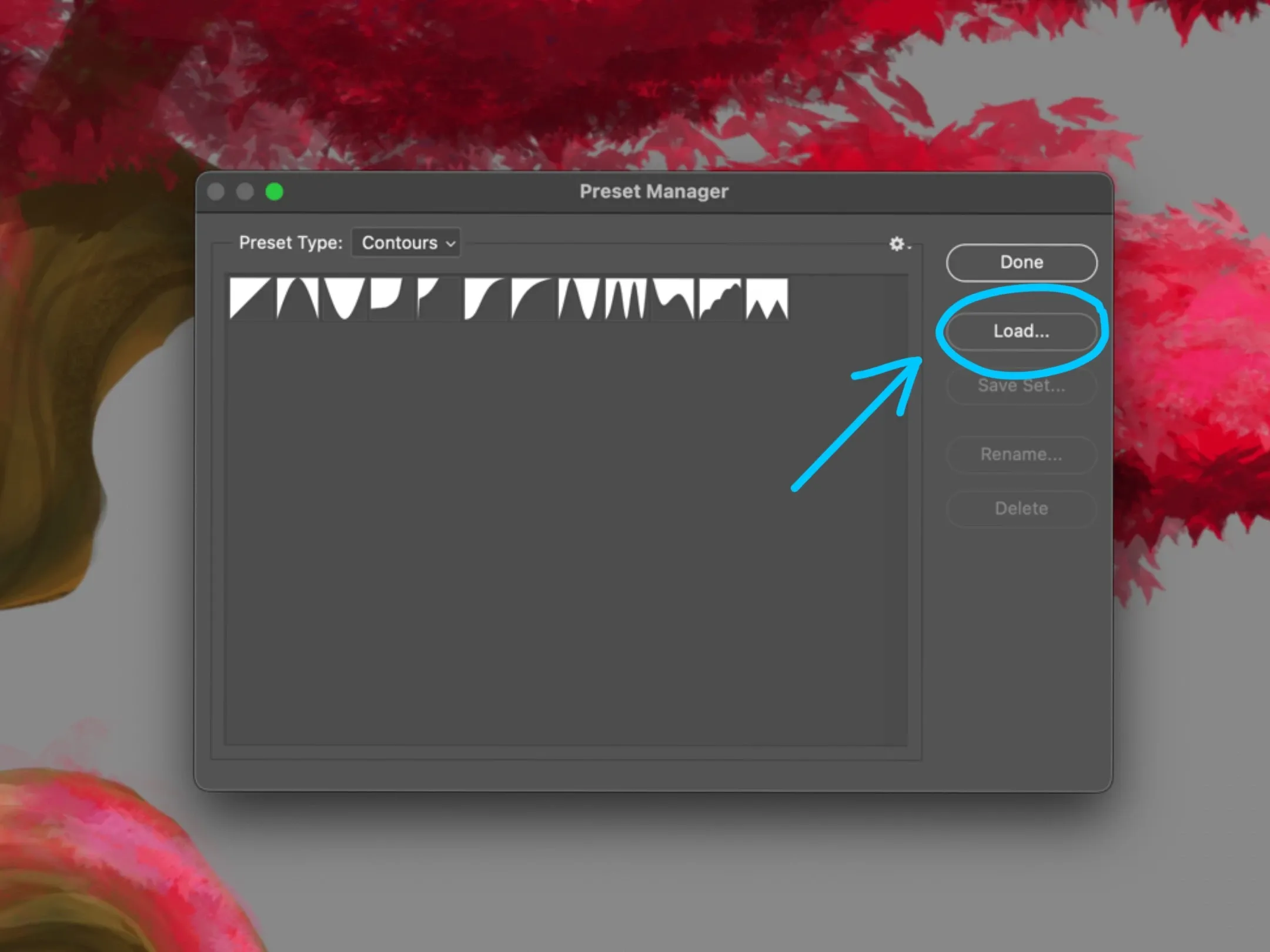
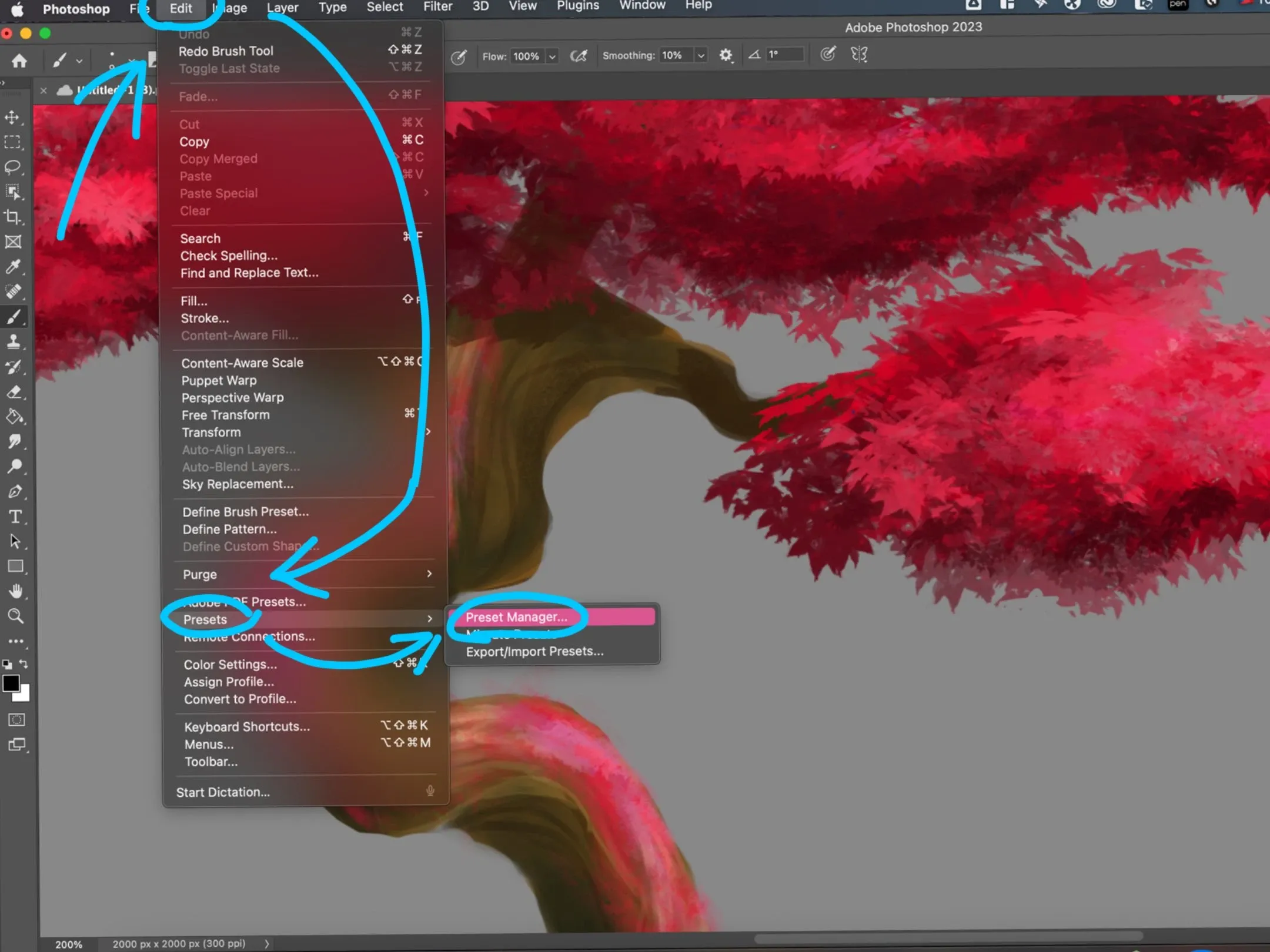
Artists frequently share custom brushes online in .abr format. To install a downloaded brush set, go to Edit → Presets → Preset Manager, click Load, and pick your .abr file.
Related Posts
- 1 Maya Basics — a Five-Minute TourCookbook · A short tour of the Autodesk Maya interface — workspace, viewport navigation, primitive shapes, modeling tools, and the channel box. For first-timers.
- 2 How to Color in Corel PainterCookbook · The Corel Painter colour picker in one tour — open the palette, the detailed mixer, the eyedropper, and how to build a custom palette from scratch.
- 3 How to Add a 2D Collider to Sprites in UnityCookbook · How to add and adjust a 2D collider on a sprite in Unity so it can actually collide with the world. The Inspector flow, in five clicks.
- 4 How to Get Rid of Sticky Walls in UnityCookbook · The quick fix for characters sticking to walls in 2D Unity — create a Physics Material 2D with zero friction and apply it to your player's Rigidbody 2D.
Random Posts
- 1 Maya Basics — a Five-Minute TourCookbook · A short tour of the Autodesk Maya interface — workspace, viewport navigation, primitive shapes, modeling tools, and the channel box. For first-timers.
- 2 How to Color in Corel PainterCookbook · The Corel Painter colour picker in one tour — open the palette, the detailed mixer, the eyedropper, and how to build a custom palette from scratch.
- 3 How to Add an Icon for a Game in UnityCookbook · The shortest path to setting a game icon in Unity — File → Build Settings → Player Settings — plus fixes for the two mini-problems you'll run into.
- 4 2D vs 3D for Your First Game: Which One Should a Beginner ChooseGame Development · 2D lets you learn movement, collisions and animation without a whole 3D workflow on top. Here is when to start there, when 3D is worth it, and how to skip the art.