
How to Add an Icon for a Game in Unity
By Leila · Creative Director · Game Designer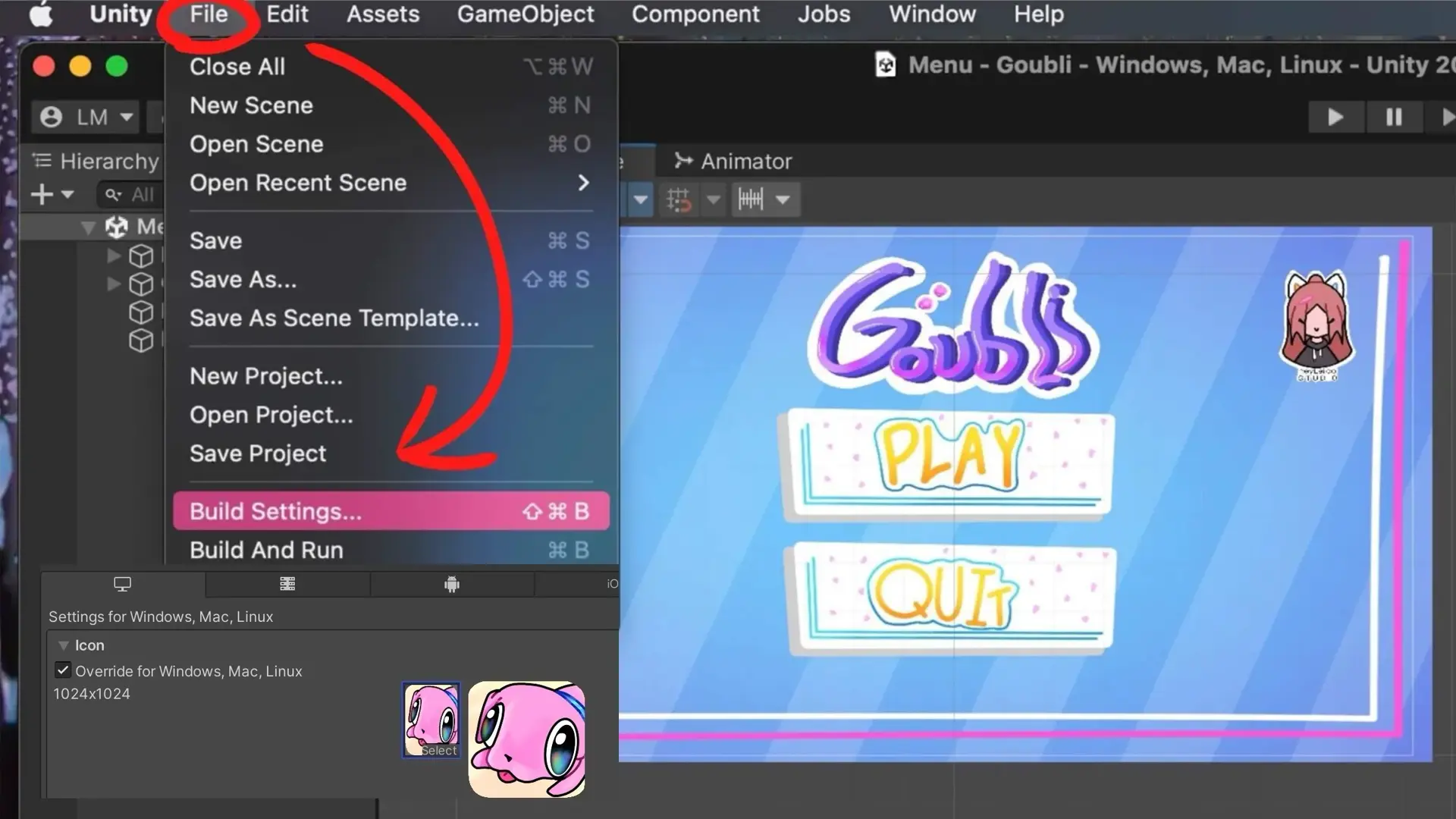
Setting a game icon in Unity sounds trivial — and it is, once you know where the upload slots actually live. This is the shortest path to a finished icon, plus the two mini-problems you’ll almost certainly run into on the way.
For the next setup chore in a 2D Unity project, see How to Add a 2D Collider to Sprites in Unity.
Main Instructions
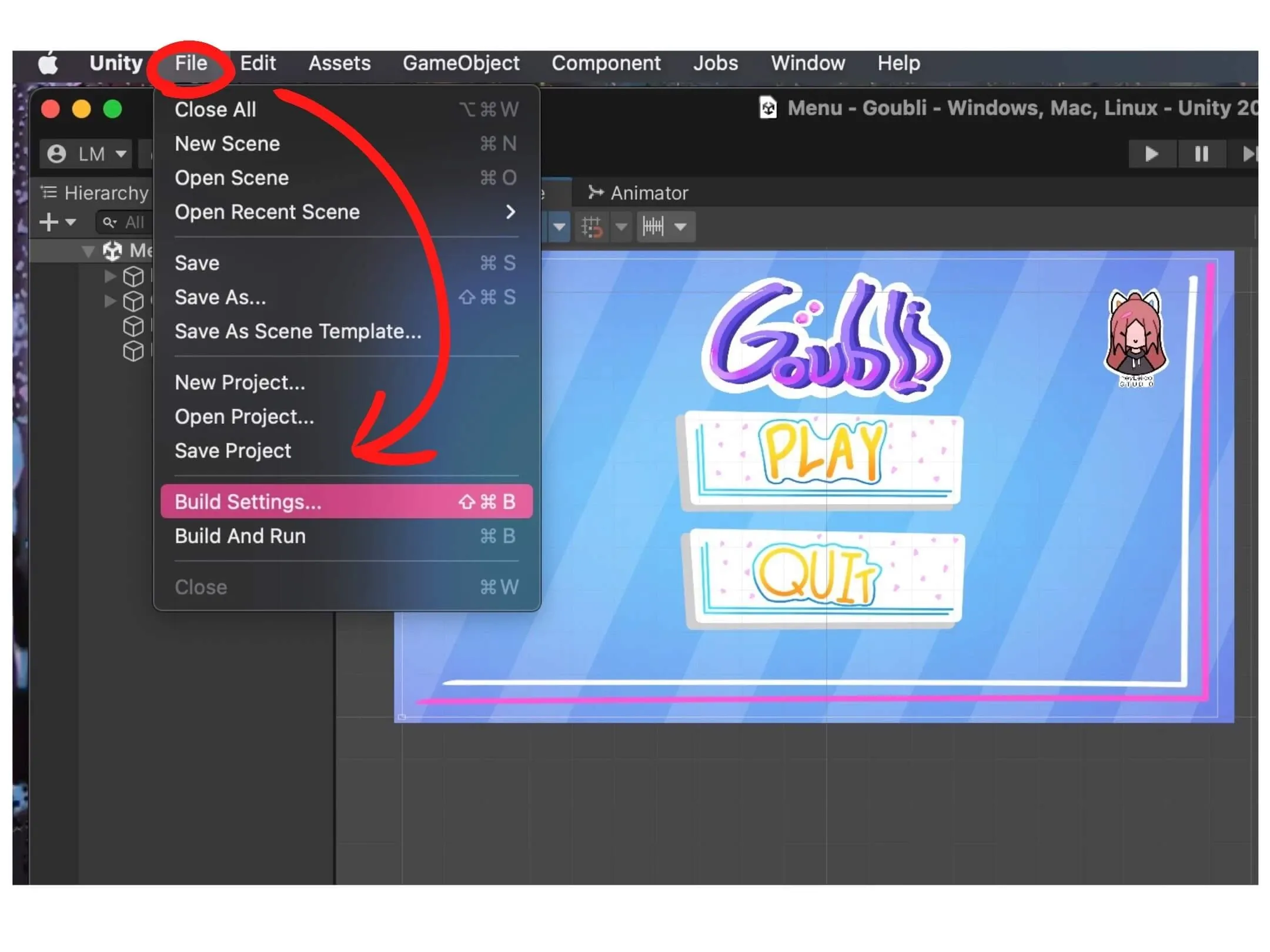
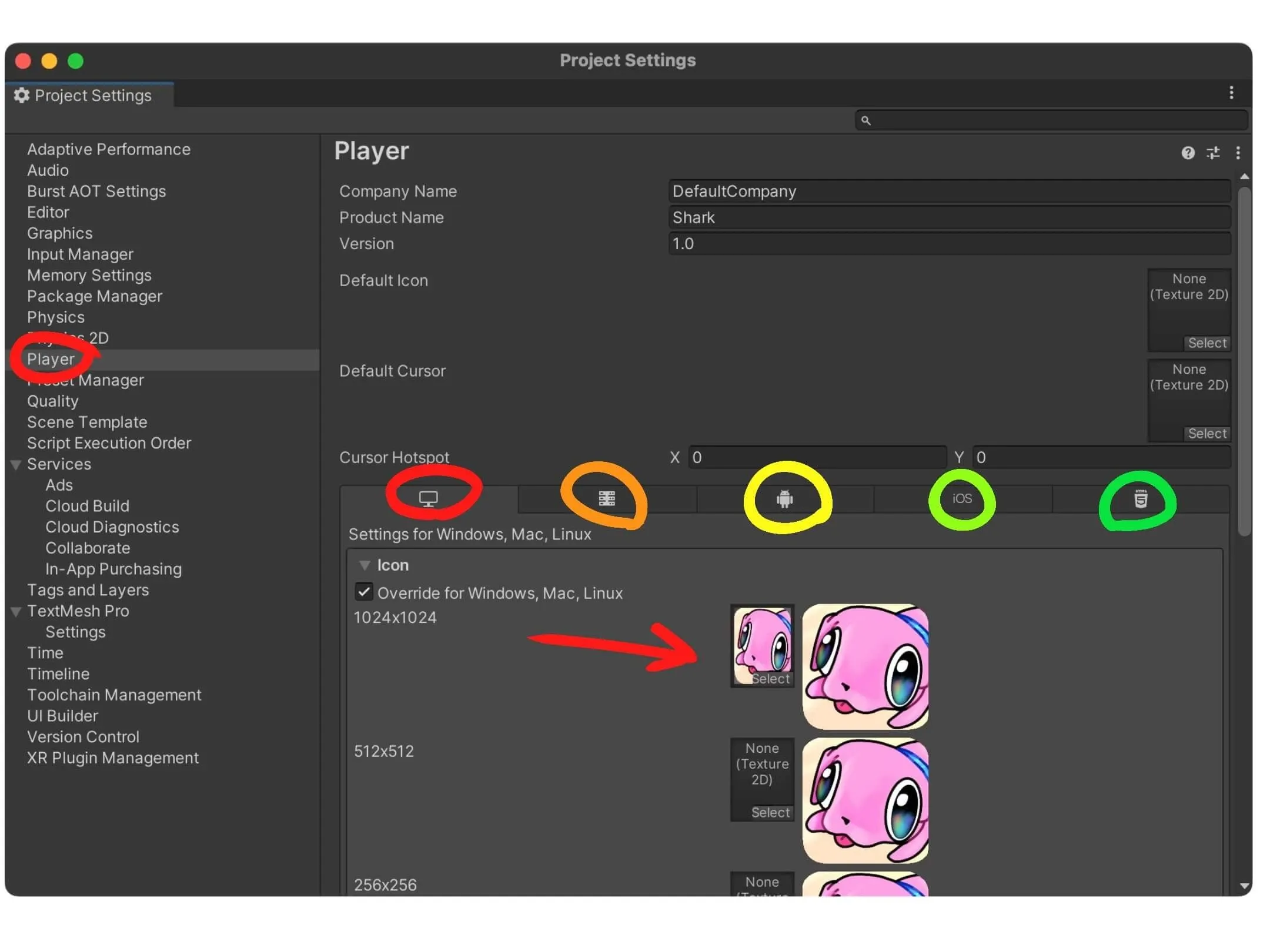
To set an icon for your game, navigate to File → Build Settings. A small window will appear. In the lower-left corner, click Player Settings.
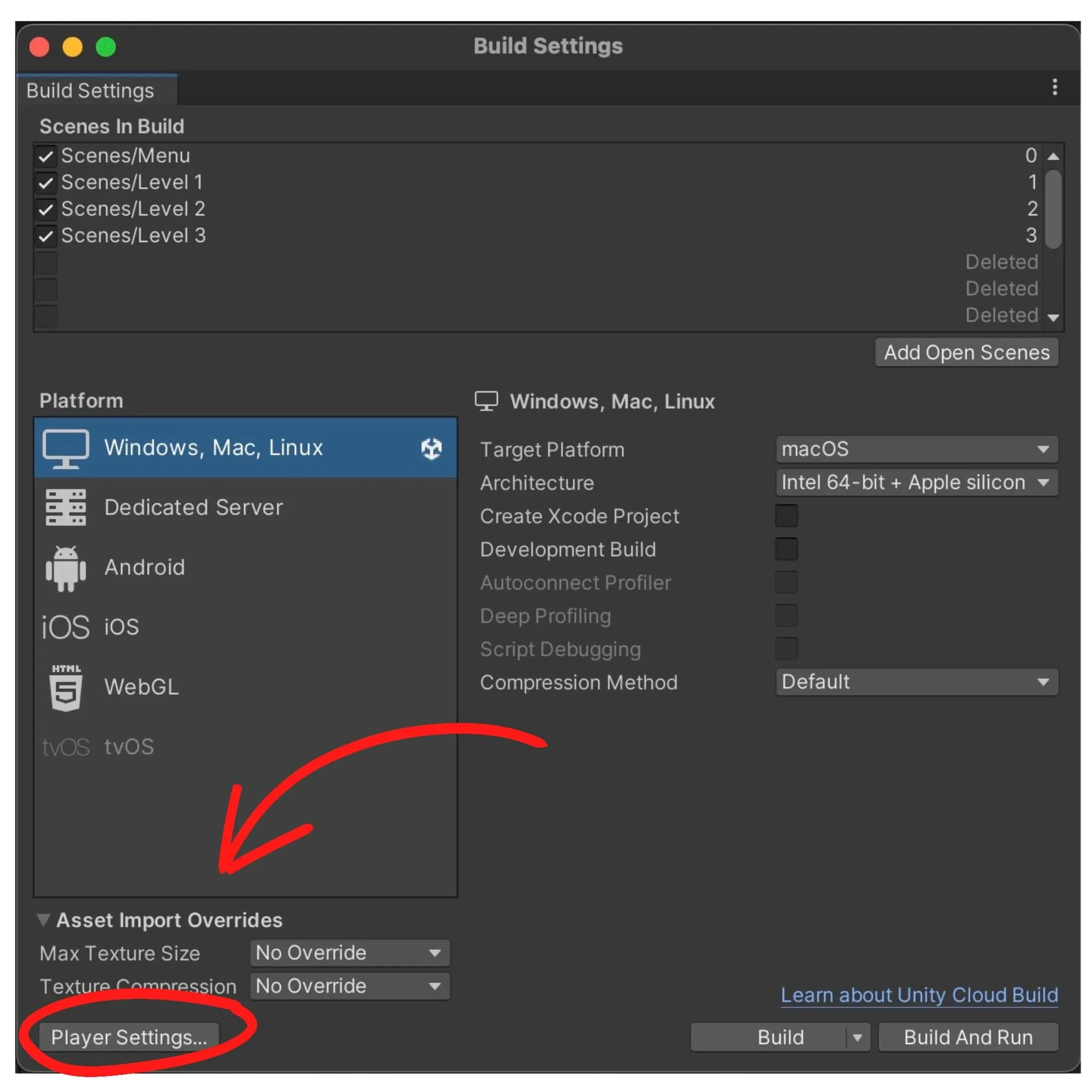
Inside the Player Settings window (under the Player section), you’ll find several mini icons for uploading your game’s icon — one set per platform (computers, mobile devices, etc.). Pick your target platform and click the field below Icon to upload your custom icon.
Mini Problems
Missing platform categories
If you can’t locate the iPhone or Android categories for icon upload, you most likely haven’t installed the build-support add-ons for those platforms. Open the Unity Hub, go to your Unity version’s settings, and add the missing platform modules.
Missing icon selection fields
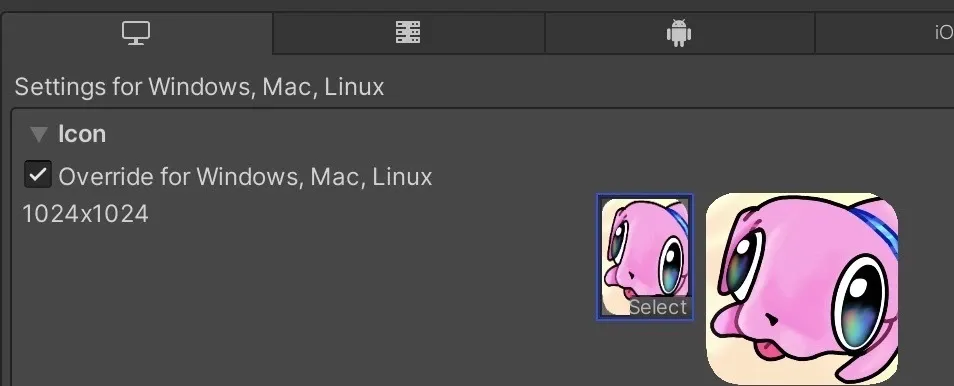
If you don’t see the small clickable icon with a Select option to add your cover image, check the box labeled Override for standalone and enable it. The mini icons you need will appear.
Related Posts
- 1 Maya Basics — a Five-Minute TourCookbook · A short tour of the Autodesk Maya interface — workspace, viewport navigation, primitive shapes, modeling tools, and the channel box. For first-timers.
- 2 How to Color in Corel PainterCookbook · The Corel Painter colour picker in one tour — open the palette, the detailed mixer, the eyedropper, and how to build a custom palette from scratch.
- 3 How to Add a 2D Collider to Sprites in UnityCookbook · How to add and adjust a 2D collider on a sprite in Unity so it can actually collide with the world. The Inspector flow, in five clicks.
- 4 How to Get Rid of Sticky Walls in UnityCookbook · The quick fix for characters sticking to walls in 2D Unity — create a Physics Material 2D with zero friction and apply it to your player's Rigidbody 2D.
Random Posts
- 1 How to Color in ProcreateCookbook · The tools I reach for when picking and applying color in Procreate — eyedropper, ColorDrop, and a tour of the Disc, Classic, Value, and Palettes modes.
- 2 How to Get Rid of Sticky Walls in UnityCookbook · The quick fix for characters sticking to walls in 2D Unity — create a Physics Material 2D with zero friction and apply it to your player's Rigidbody 2D.
- 3 How to Launch an Indie Game in 2026: The Three PillarsGame Development · Launching your first game does not start with code or expensive software. It starts with a character worth building a world around, and a broken prototype.
- 4 Maya Basics — a Five-Minute TourCookbook · A short tour of the Autodesk Maya interface — workspace, viewport navigation, primitive shapes, modeling tools, and the channel box. For first-timers.