
How to Get Rid of Sticky Walls in Unity
By Leila · Creative Director · Game Designer
Solution Overview

A common issue in 2D Unity game development: characters unintentionally adhere to wall surfaces during gameplay. Here’s the quick fix — a Physics Material 2D with zero friction, dragged onto the player Rigidbody 2D.
Hitting this before you’ve even given your sprite collision geometry? Start with Adding a 2D Collider to Sprites in Unity, then come back.
Step-by-Step Instructions
Step 1: Create Physics Material 2D
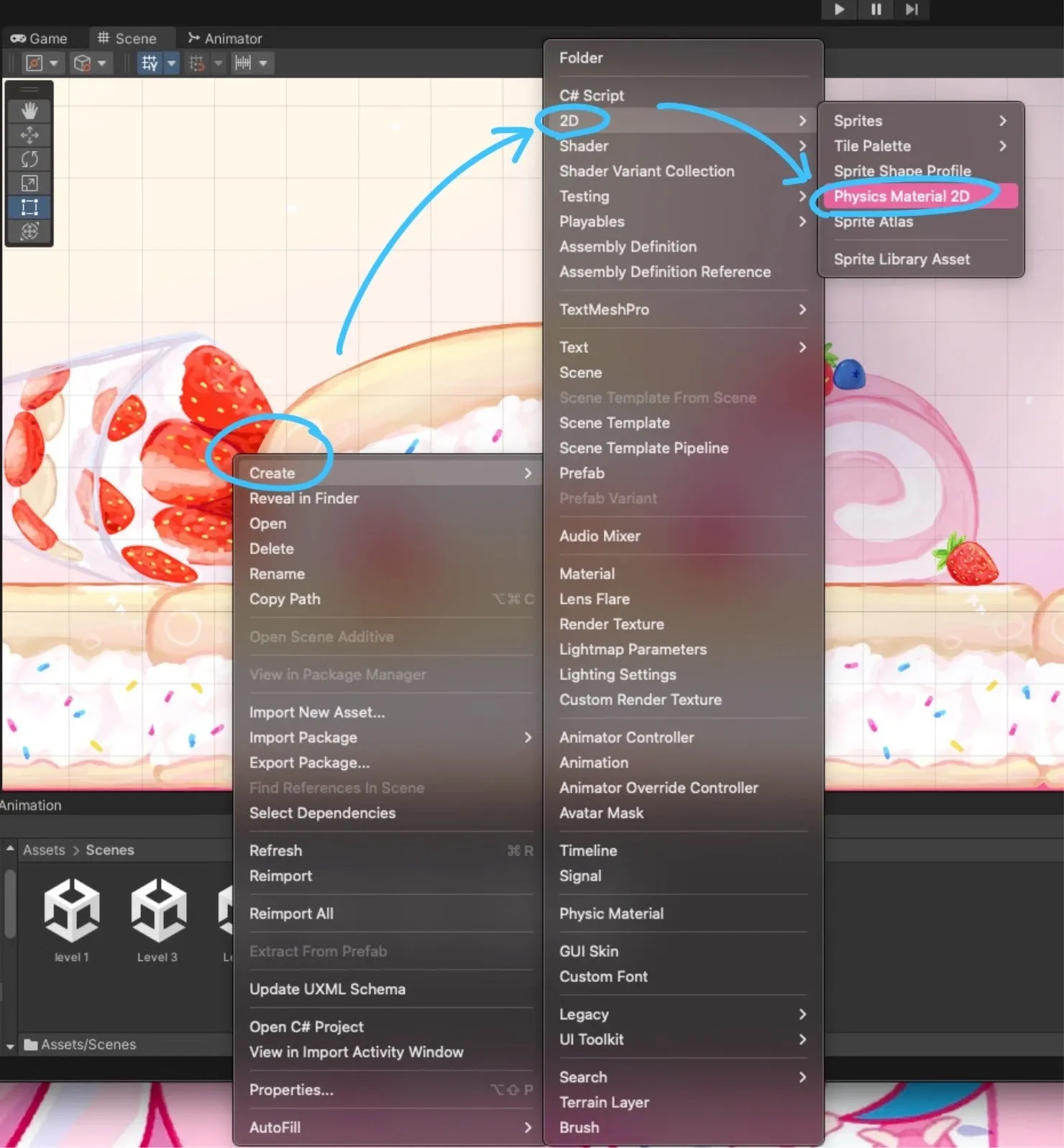
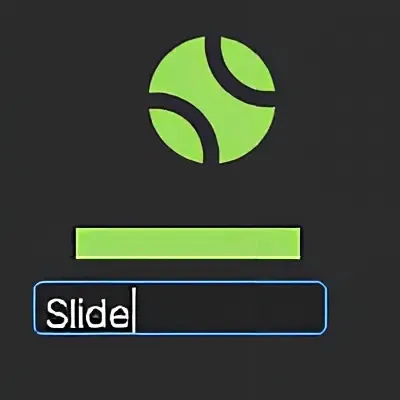
Right-click on the Assets section (or in any folder) and navigate to Create → 2D → Physics Material 2D.
Step 2: Configure Friction Settings
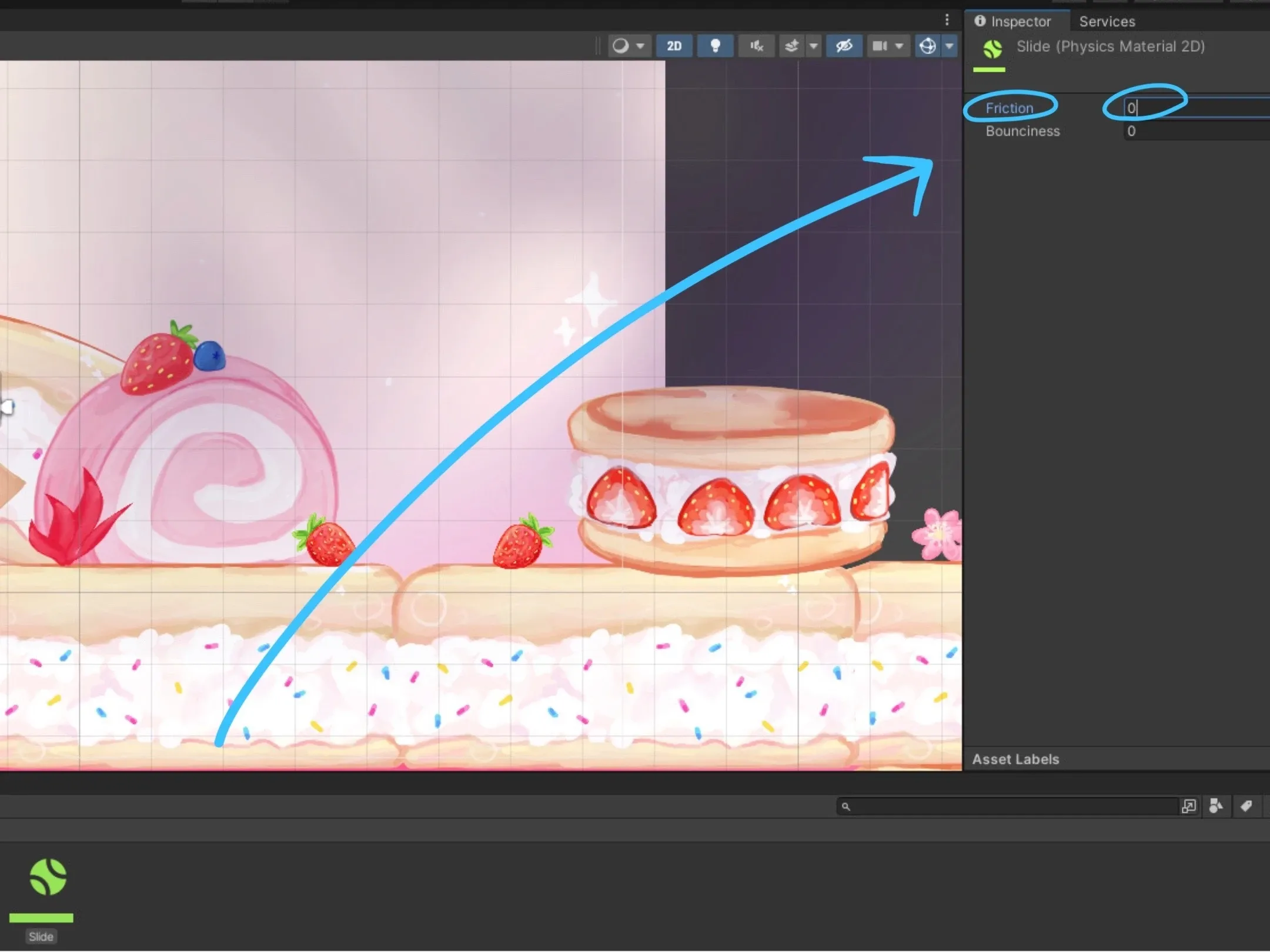
Name your new material — the example uses slide. In the right panel, find the Friction value and set it to 0.
Step 3: Apply Material to Player
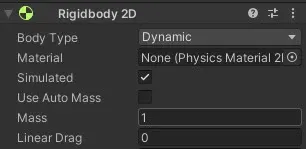
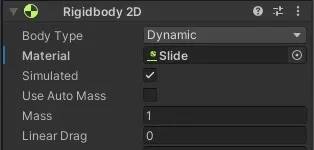
Select your player character and find its Rigidbody 2D component. Locate the Material field and drag your newly created Physics Material 2D into it.
Step 4: Test
And it’s done. Your character should no longer stick to walls when you run the game.
Related Posts
- 1 Maya Basics — a Five-Minute TourCookbook · A short tour of the Autodesk Maya interface — workspace, viewport navigation, primitive shapes, modeling tools, and the channel box. For first-timers.
- 2 How to Color in Corel PainterCookbook · The Corel Painter colour picker in one tour — open the palette, the detailed mixer, the eyedropper, and how to build a custom palette from scratch.
- 3 How to Add a 2D Collider to Sprites in UnityCookbook · How to add and adjust a 2D collider on a sprite in Unity so it can actually collide with the world. The Inspector flow, in five clicks.
- 4 How to Add an Icon for a Game in UnityCookbook · The shortest path to setting a game icon in Unity — File → Build Settings → Player Settings — plus fixes for the two mini-problems you'll run into.
Random Posts
- 1 How to Launch an Indie Game in 2026: The Three PillarsGame Development · Launching your first game does not start with code or expensive software. It starts with a character worth building a world around, and a broken prototype.
- 2 2D vs 3D for Your First Game: Which One Should a Beginner ChooseGame Development · 2D lets you learn movement, collisions and animation without a whole 3D workflow on top. Here is when to start there, when 3D is worth it, and how to skip the art.
- 3 How to Color in ProcreateCookbook · The tools I reach for when picking and applying color in Procreate — eyedropper, ColorDrop, and a tour of the Disc, Classic, Value, and Palettes modes.
- 4 Docker for Solo Game Developers: Stop Being Tech Support for Your Own PCGame Development · Unity, Blender and a test server on one machine will break each other eventually. Containers keep every project's setup in its own box, so your computer stays clean.