
How to Add a 2D Collider to Sprites in Unity
By Leila · Creative Director · Game Designer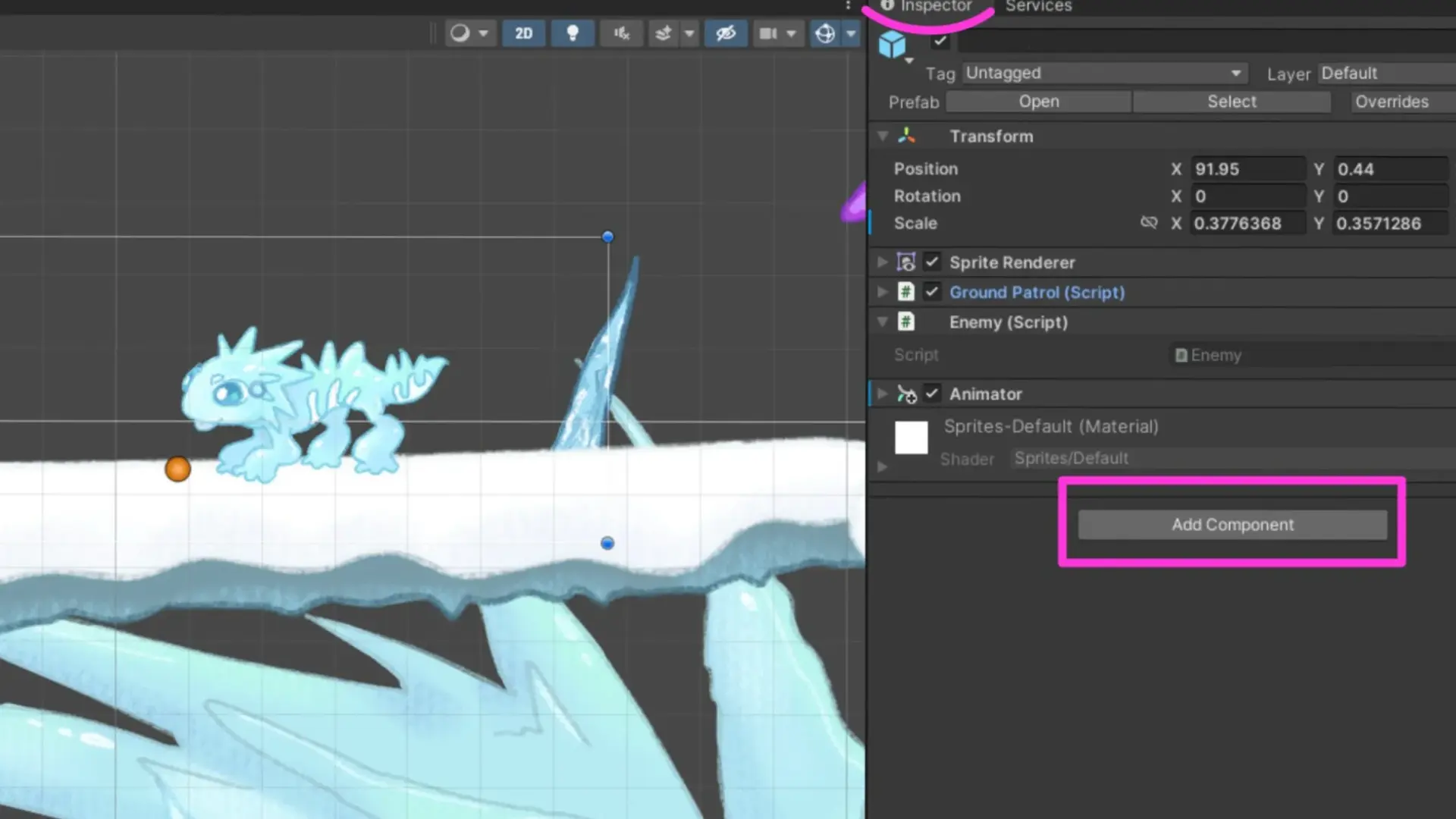
Adding collision to sprites is fundamental for 2D game development in Unity — without a collider, a sprite has no physical boundary, so the player walks straight through it. This step-by-step guide is the Inspector flow in five clicks.
Once the collider is in place, the next thing that tends to go sideways is the player sticking to the collider edges. The fix lives in How to Get Rid of Sticky Walls in Unity.
Select Your Sprite
Click on the sprite you want to give a collider. The Inspector panel on the right side displays all available settings for that object.
Add the Collider Component
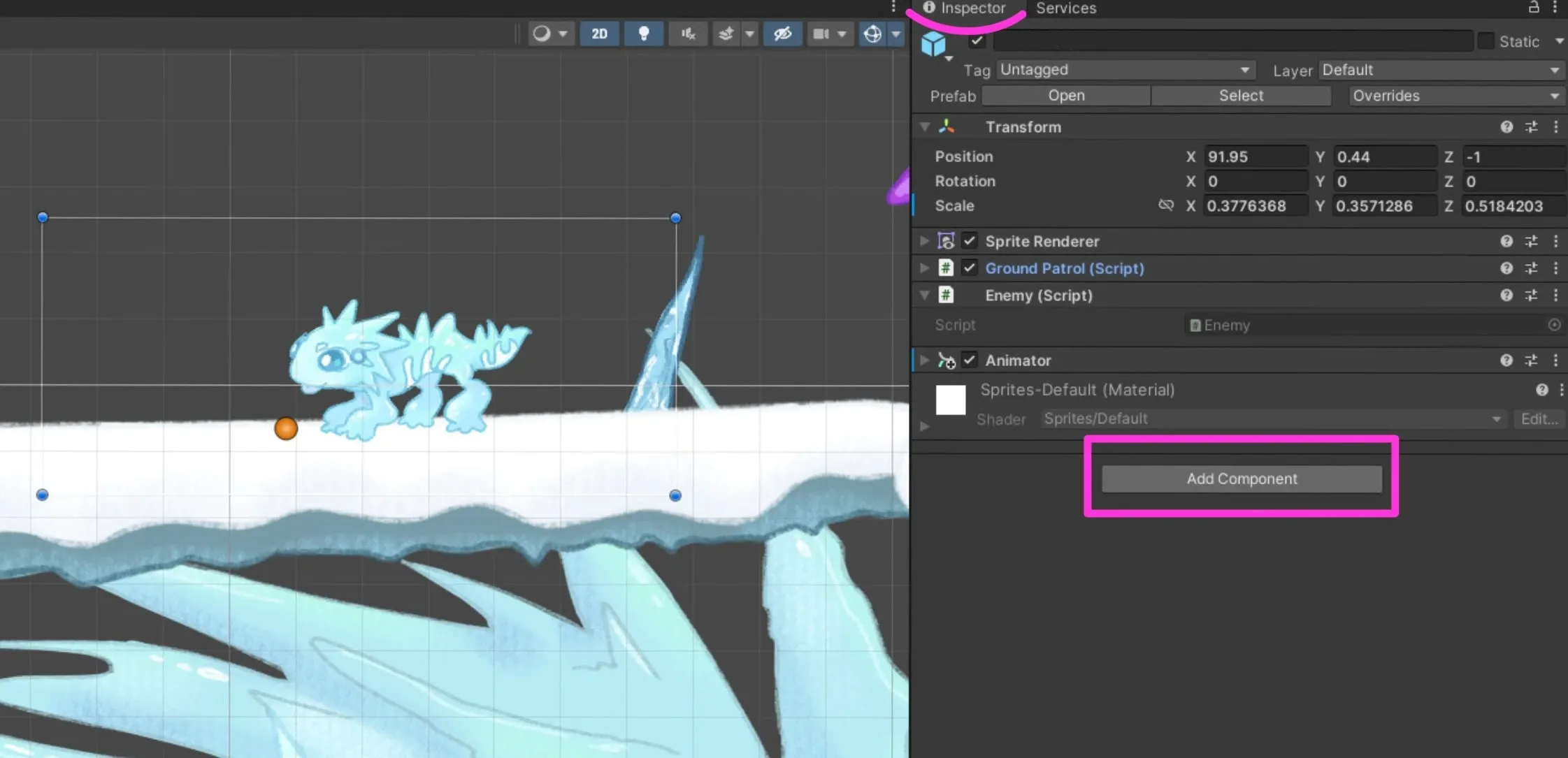
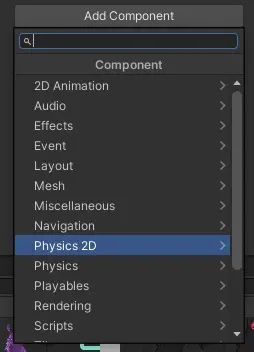
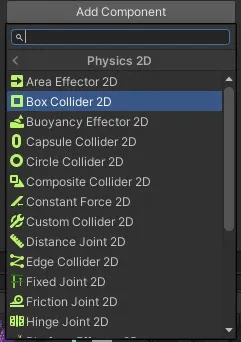
In the Inspector, find Add Component. Navigate to Physics 2D and select Box Collider 2D — or any other collider that matches your sprite shape.
Adjust the Collider
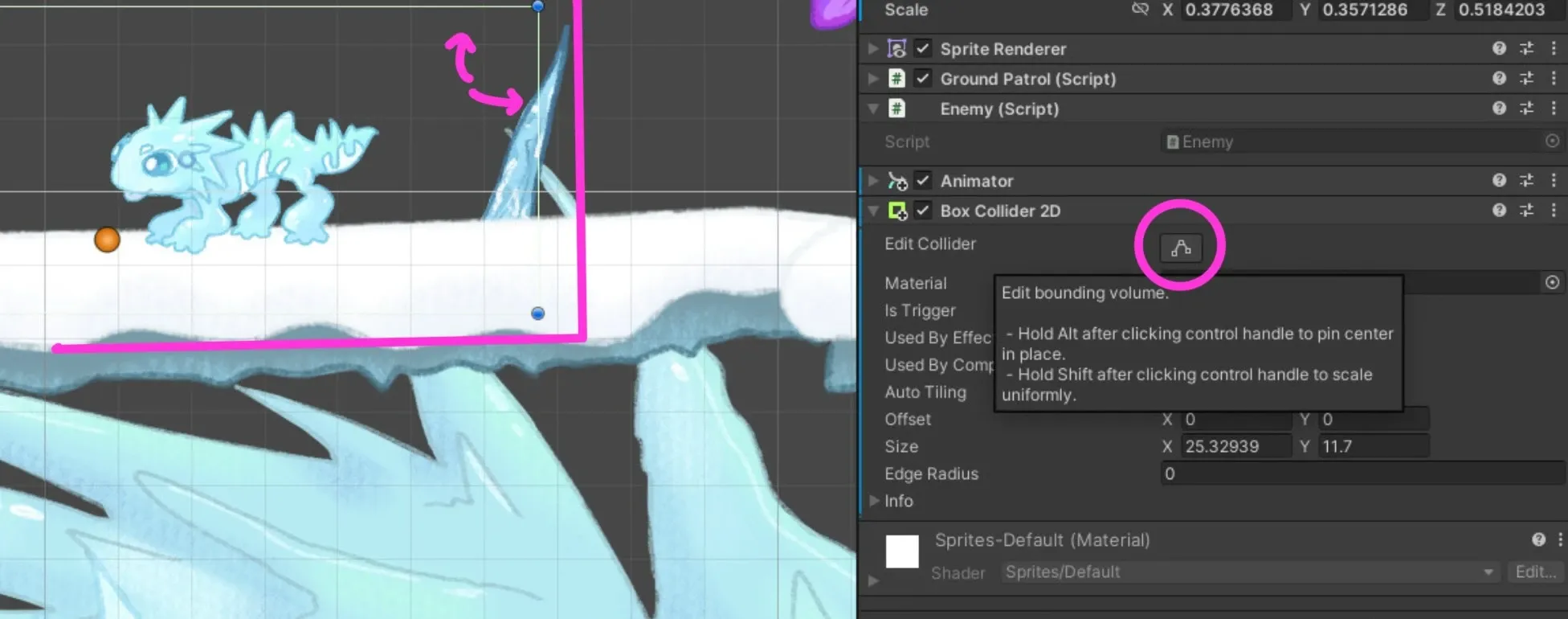
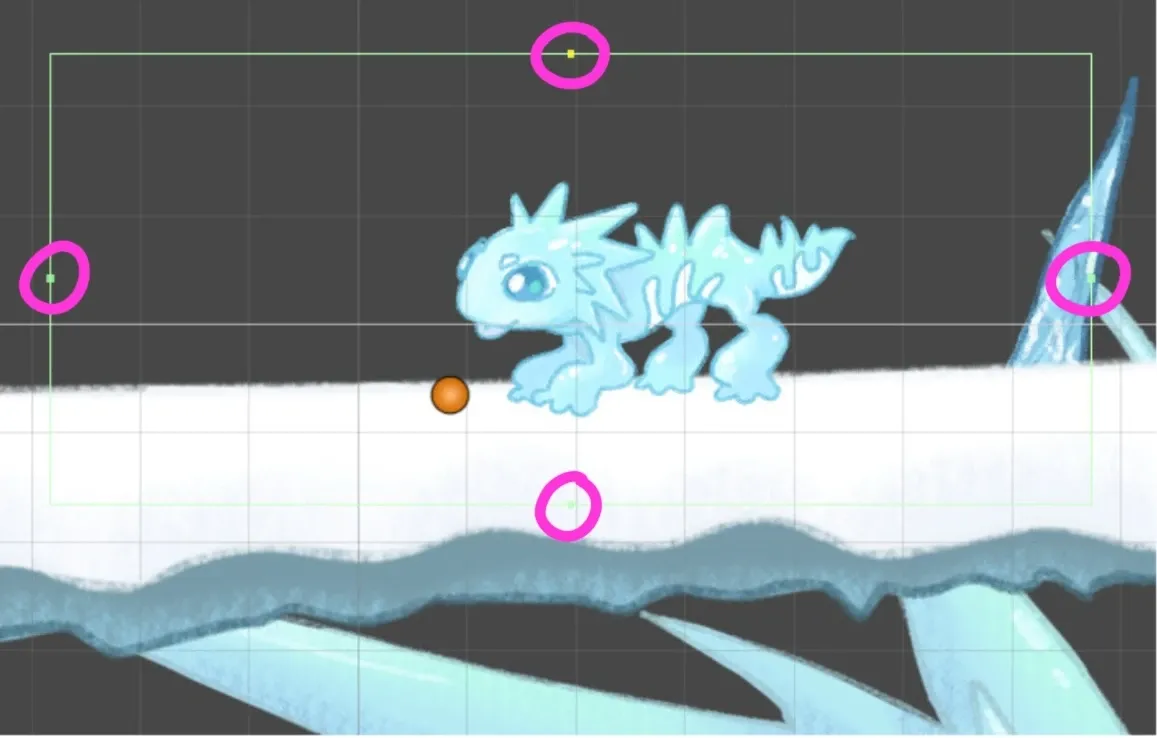
A green boundary box now appears around your sprite. To refine the boundary, click Edit Collider within the Box Collider 2D component settings. Small adjustment handles appear — drag them to customize the collider’s shape and size.
Result
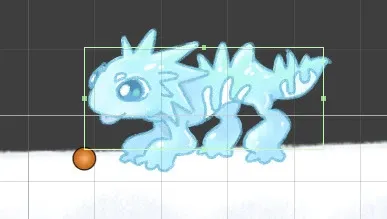
With a collider in place, your object now has a physical boundary. The player (or other physics objects) can’t pass through it.
Related Posts
- 1 Maya Basics — a Five-Minute TourCookbook · A short tour of the Autodesk Maya interface — workspace, viewport navigation, primitive shapes, modeling tools, and the channel box. For first-timers.
- 2 How to Color in Corel PainterCookbook · The Corel Painter colour picker in one tour — open the palette, the detailed mixer, the eyedropper, and how to build a custom palette from scratch.
- 3 How to Get Rid of Sticky Walls in UnityCookbook · The quick fix for characters sticking to walls in 2D Unity — create a Physics Material 2D with zero friction and apply it to your player's Rigidbody 2D.
- 4 How to Add an Icon for a Game in UnityCookbook · The shortest path to setting a game icon in Unity — File → Build Settings → Player Settings — plus fixes for the two mini-problems you'll run into.
Random Posts
- 1 Game Character and Story Design: How to Make Players CareGame Development · Good mechanics keep players in the game. A character with a spark and a story worth finishing is what keeps them from putting it down. Here's how to build both.
- 2 How to Launch an Indie Game in 2026: The Three PillarsGame Development · Launching your first game does not start with code or expensive software. It starts with a character worth building a world around, and a broken prototype.
- 3 How to Add an Icon for a Game in UnityCookbook · The shortest path to setting a game icon in Unity — File → Build Settings → Player Settings — plus fixes for the two mini-problems you'll run into.
- 4 2D vs 3D for Your First Game: Which One Should a Beginner ChooseGame Development · 2D lets you learn movement, collisions and animation without a whole 3D workflow on top. Here is when to start there, when 3D is worth it, and how to skip the art.