
How to Use Layers in Procreate
By Leila · Creative Director · Game Designer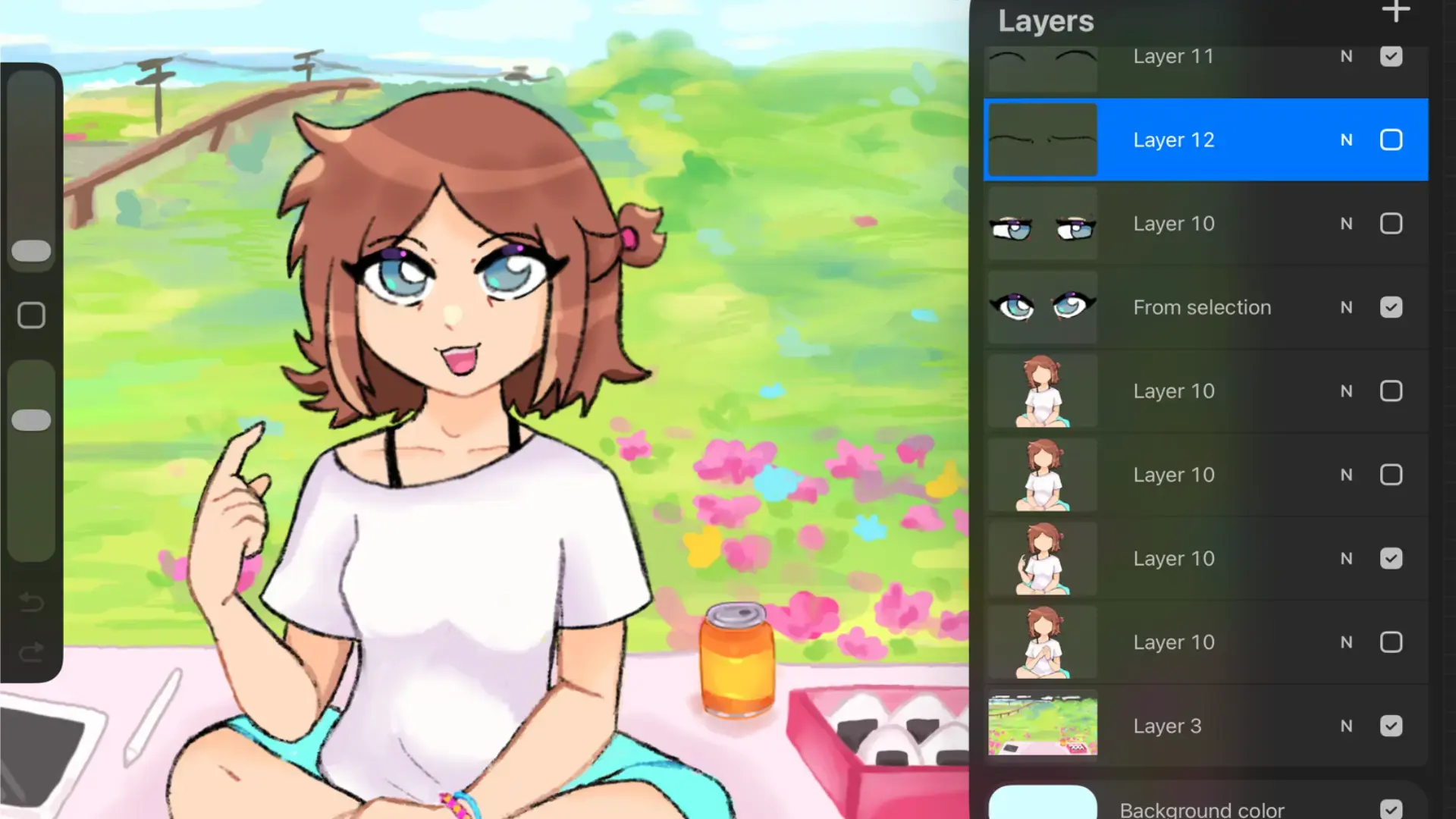
What are layers and why do we need them?
Layers in Procreate let you overlay image elements without changing your completed work. You can edit, recolor, and remove individual elements from the canvas. When you first create your canvas, you have two layers by default — the background and Layer 1.
Once you’re comfortable with layers, the next stop is How to Color in Procreate — picking and applying colour is the other half of any layered painting workflow.
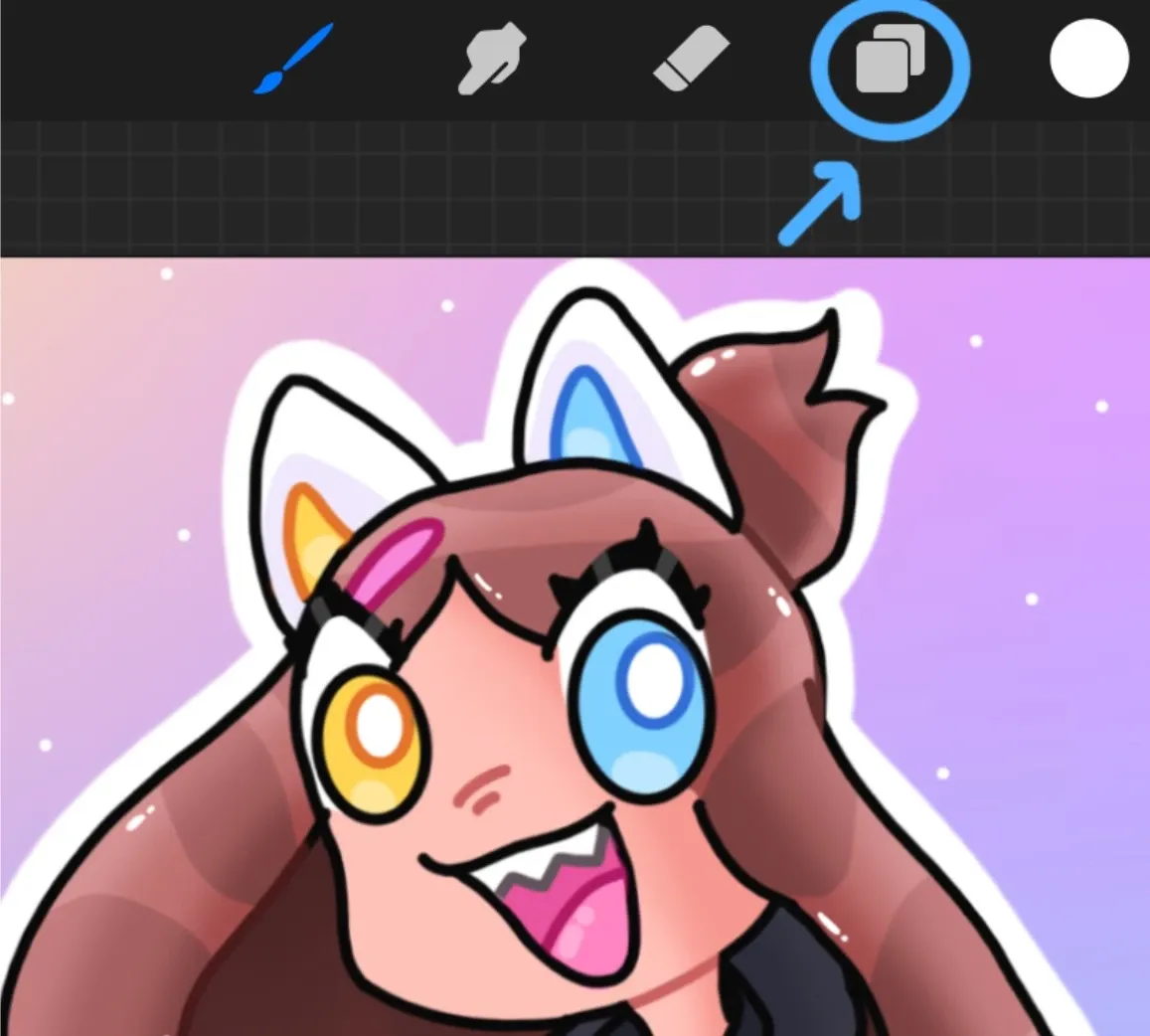
Where can I find layers?
Click the icon with two squares in the upper right corner to open the layers panel.
How can I create a new layer?
Click the plus sign in the upper right corner of the layers panel.
How can I hide my layer?
Click the checkmark next to the letter “N” to hide or show your layer.
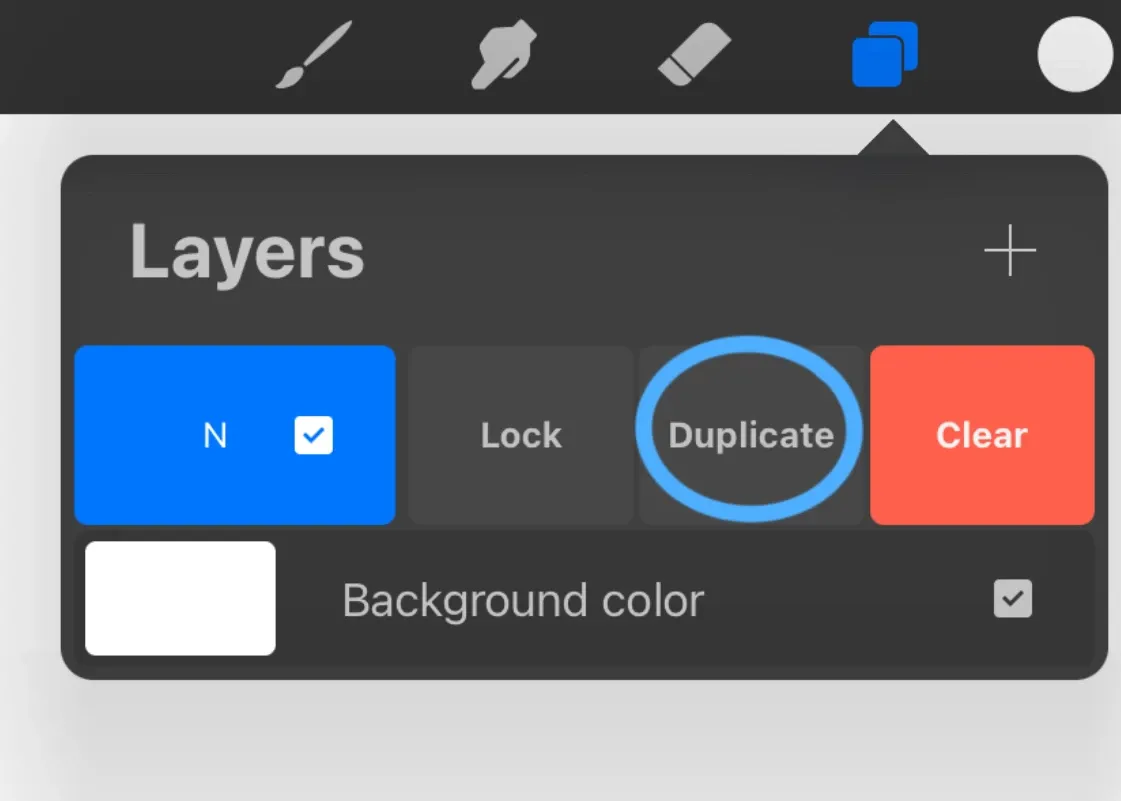
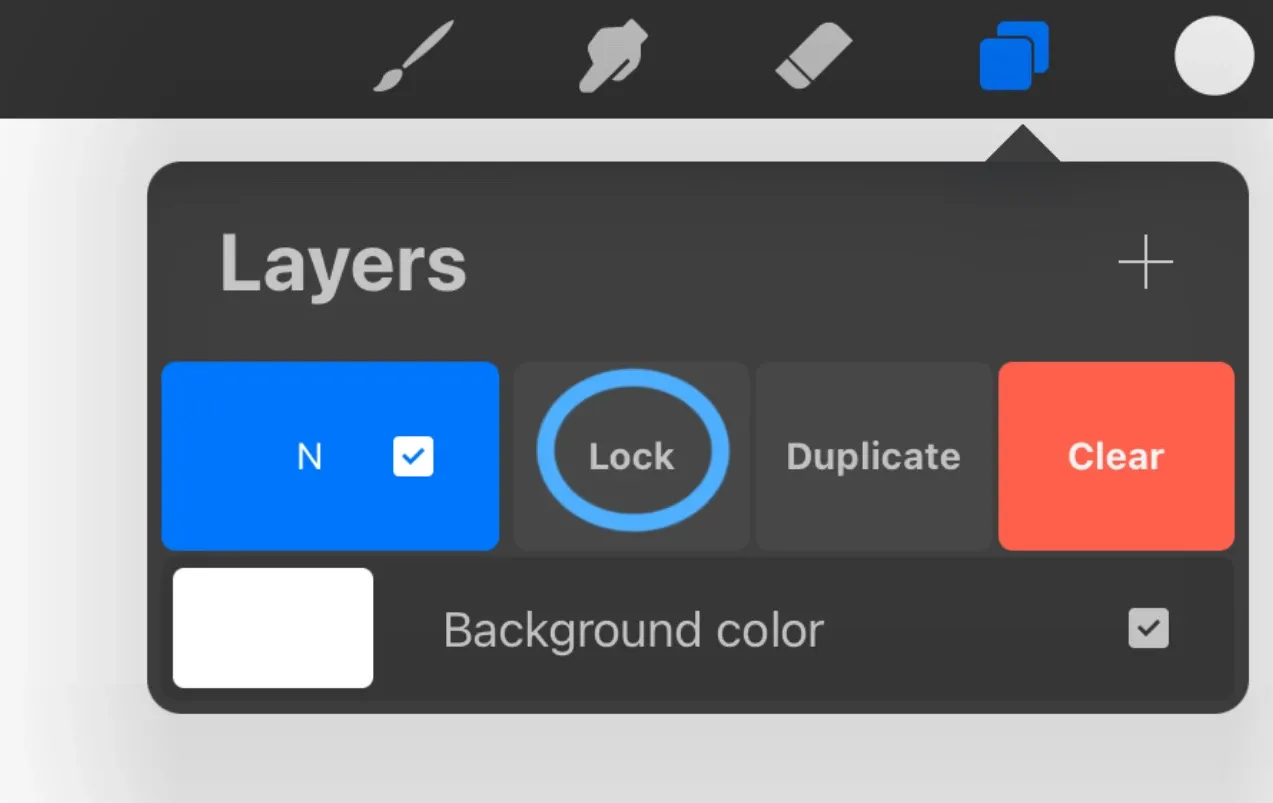
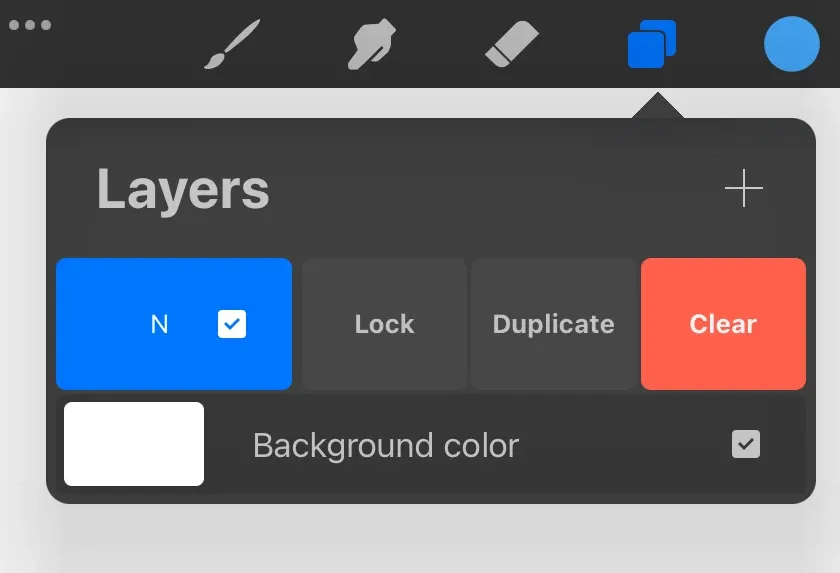
How can I duplicate, lock or delete the layer?
Swipe left on the layer to access these options.
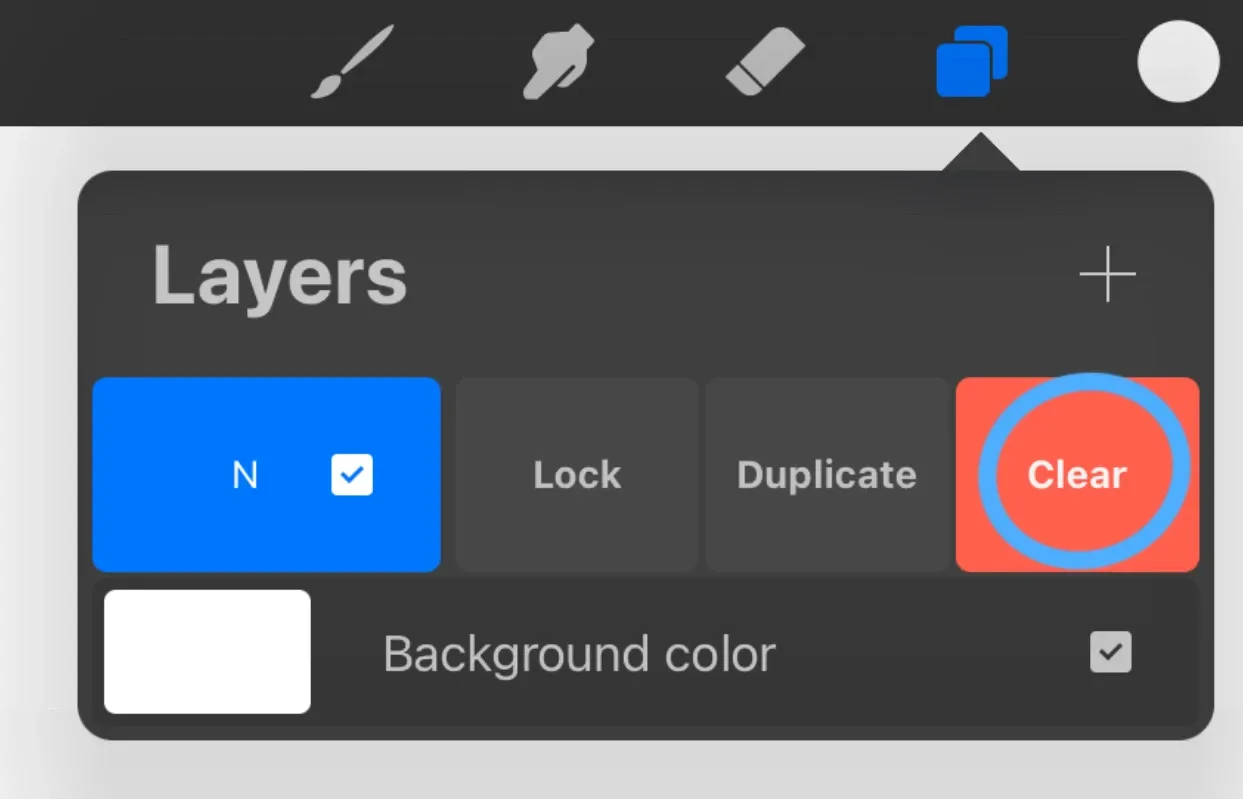
What is a duplicate?
A duplicate creates an identical copy of your layer.
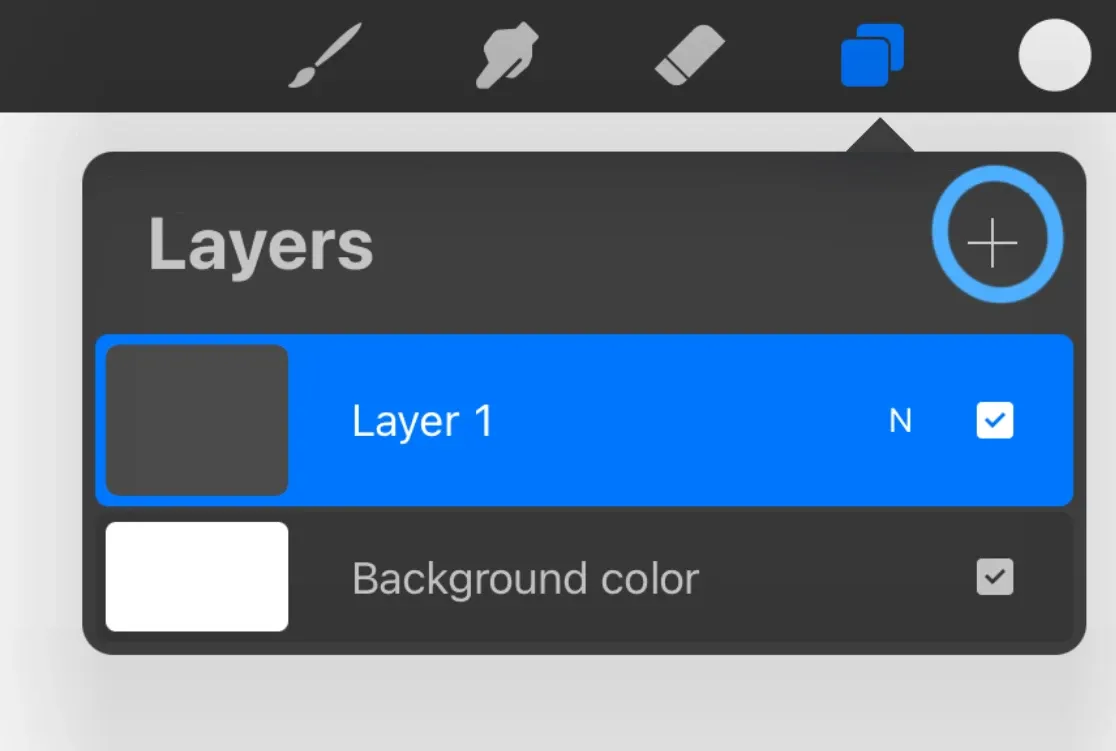
What is a lock?
With a lock, you block the layer and you can’t draw on it.
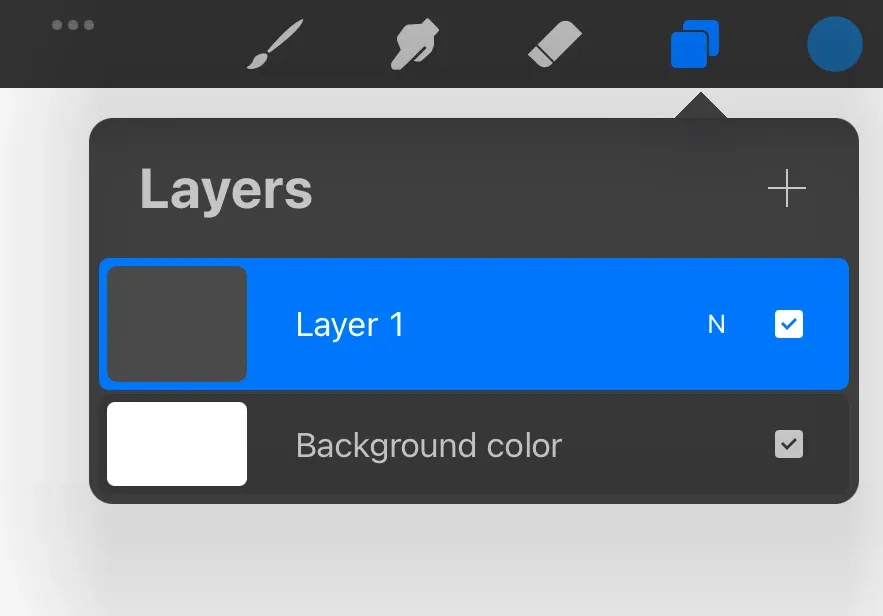
What is delete?
Delete removes your layer entirely.
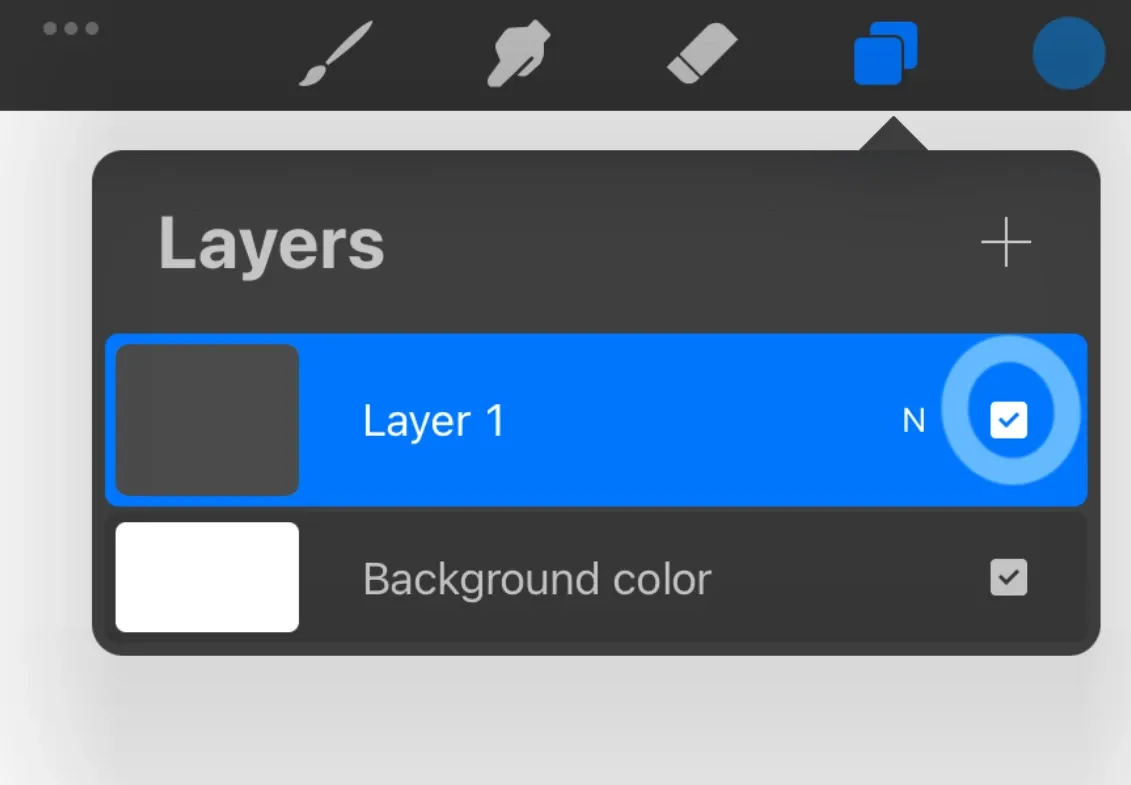
How can I lock the layer so it doesn’t go beyond the edges of the drawing?
Swipe the layer right to enable alpha lock — useful for coloring tasks where you want to stay within an existing shape.
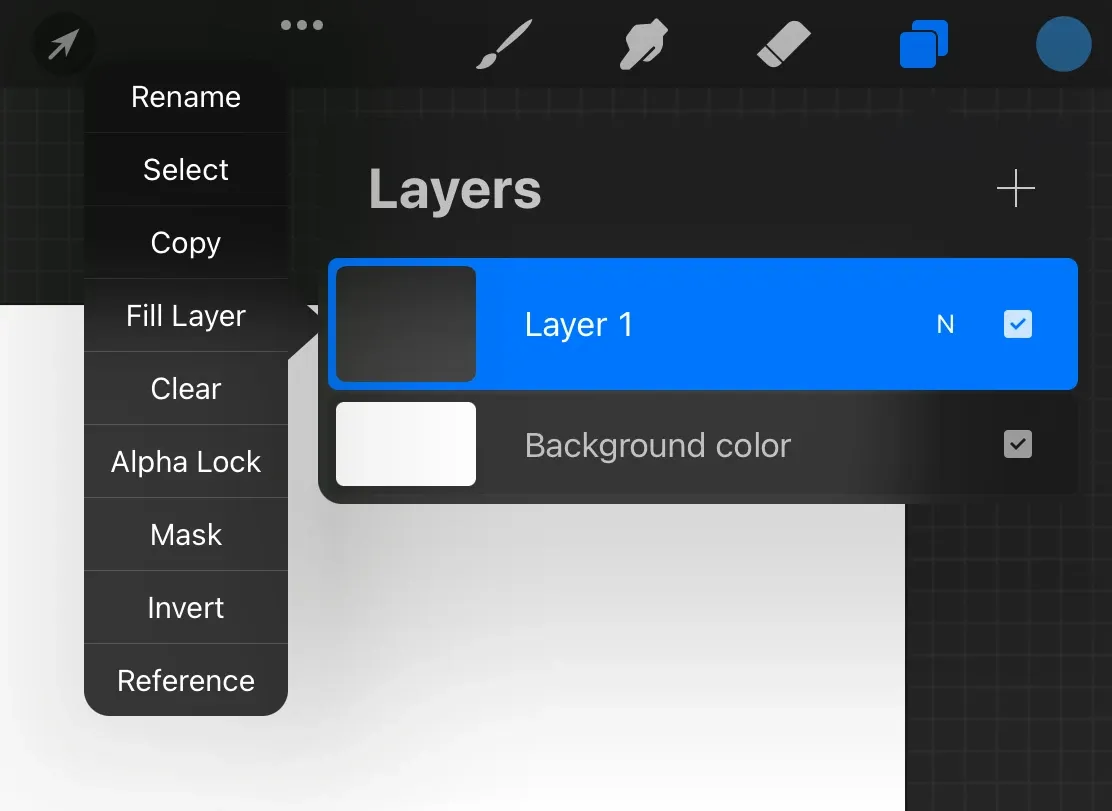
How can I change the visibility of my layer?
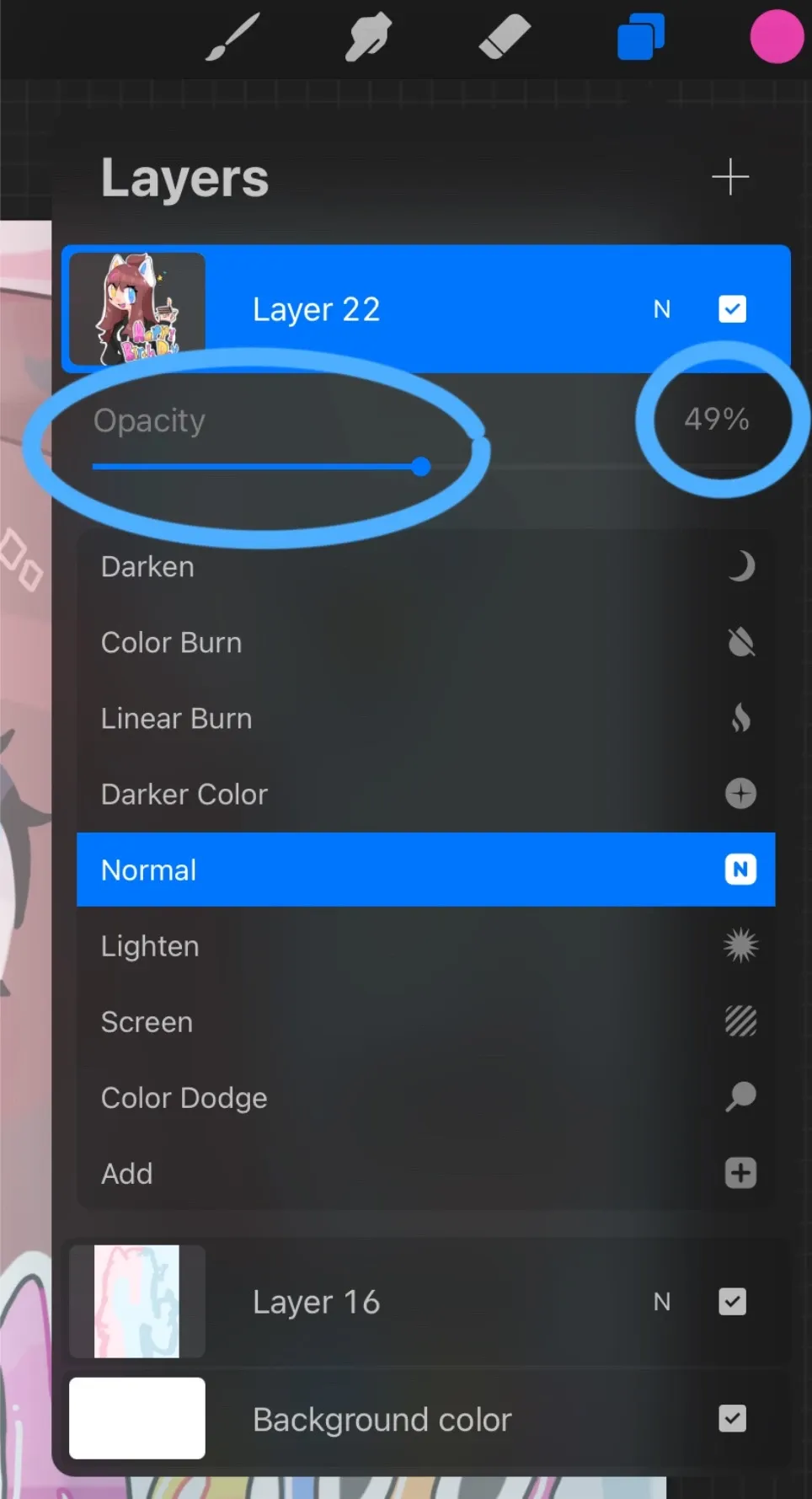
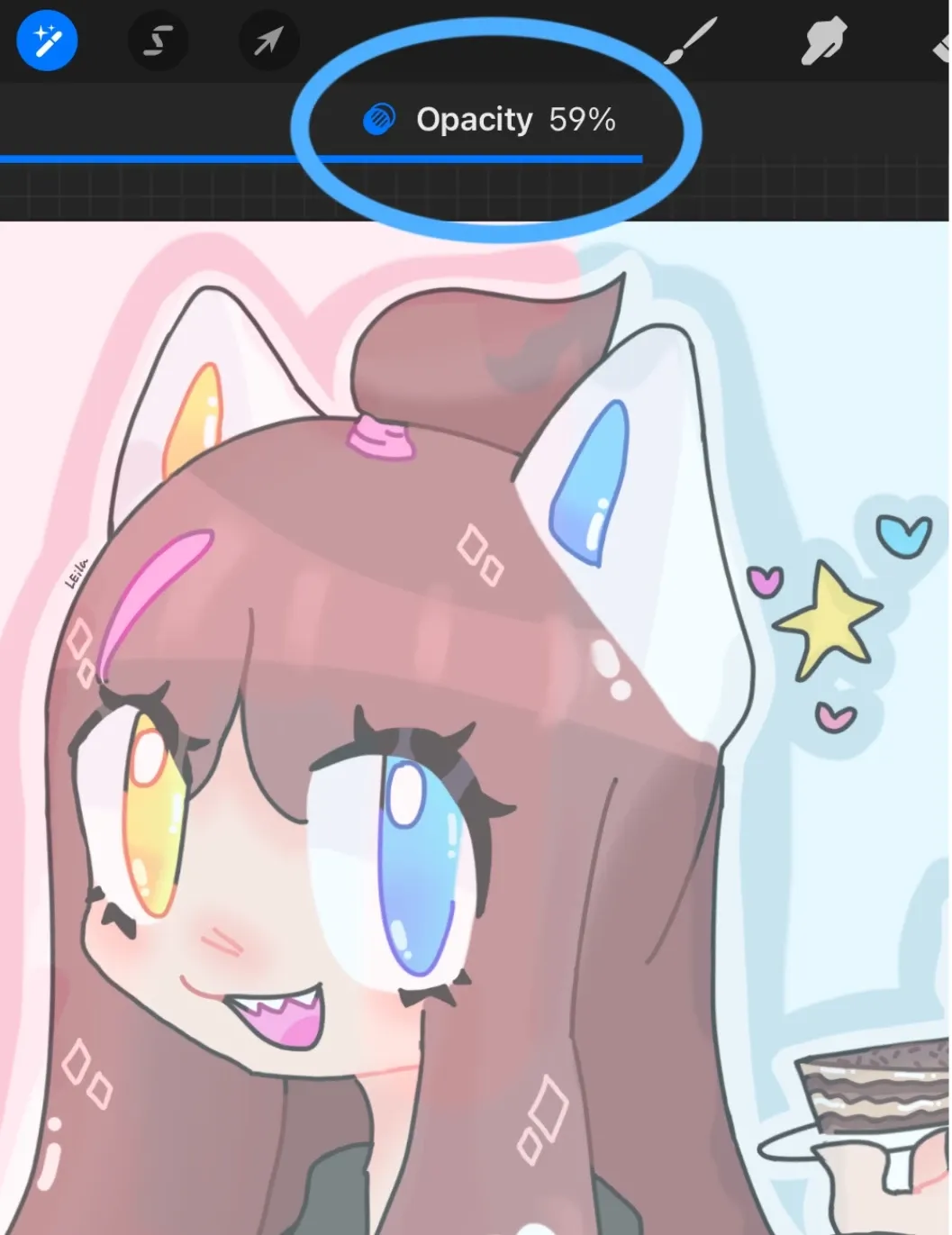
Tap with two fingers and swipe left/right, or click the letter N and adjust the visibility slider.
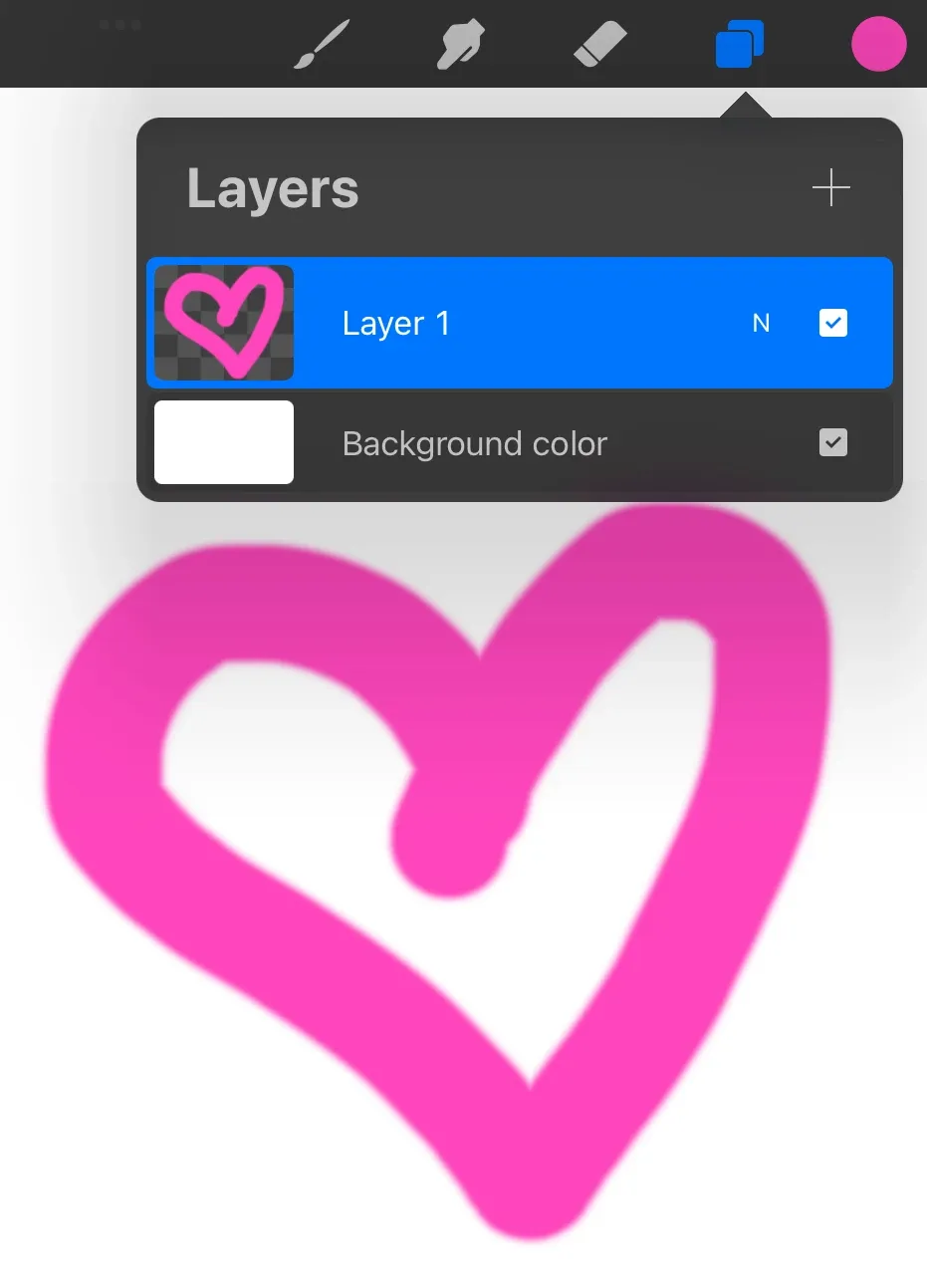
Where can I find other layer functions?
Select the layer and click on it to access rename, clear, copy, colour, and select.
Related Posts
- 1 Maya Basics — a Five-Minute TourCookbook · A short tour of the Autodesk Maya interface — workspace, viewport navigation, primitive shapes, modeling tools, and the channel box. For first-timers.
- 2 How to Color in Corel PainterCookbook · The Corel Painter colour picker in one tour — open the palette, the detailed mixer, the eyedropper, and how to build a custom palette from scratch.
- 3 How to Add a 2D Collider to Sprites in UnityCookbook · How to add and adjust a 2D collider on a sprite in Unity so it can actually collide with the world. The Inspector flow, in five clicks.
- 4 How to Get Rid of Sticky Walls in UnityCookbook · The quick fix for characters sticking to walls in 2D Unity — create a Physics Material 2D with zero friction and apply it to your player's Rigidbody 2D.
Random Posts
- 1 2D vs 3D for Your First Game: Which One Should a Beginner ChooseGame Development · 2D lets you learn movement, collisions and animation without a whole 3D workflow on top. Here is when to start there, when 3D is worth it, and how to skip the art.
- 2 How to Add an Icon for a Game in UnityCookbook · The shortest path to setting a game icon in Unity — File → Build Settings → Player Settings — plus fixes for the two mini-problems you'll run into.
- 3 How to Color in Corel PainterCookbook · The Corel Painter colour picker in one tour — open the palette, the detailed mixer, the eyedropper, and how to build a custom palette from scratch.
- 4 Maya Basics — a Five-Minute TourCookbook · A short tour of the Autodesk Maya interface — workspace, viewport navigation, primitive shapes, modeling tools, and the channel box. For first-timers.